
Introduction
Introduction
Diggipacks Sync provides seamless product and order synchronization for Shopify.
Diggipakcs Sync automatically synchronizes your product catalog, stock quantities, product status, and orders between Shopify and your backend systems or logistics partner. Designed for busy stores, it keeps inventory accurate, updates product status in real-time, and pushes new orders immediately to your fulfillment workflow, reducing oversells and manual work.
Installation
Installation
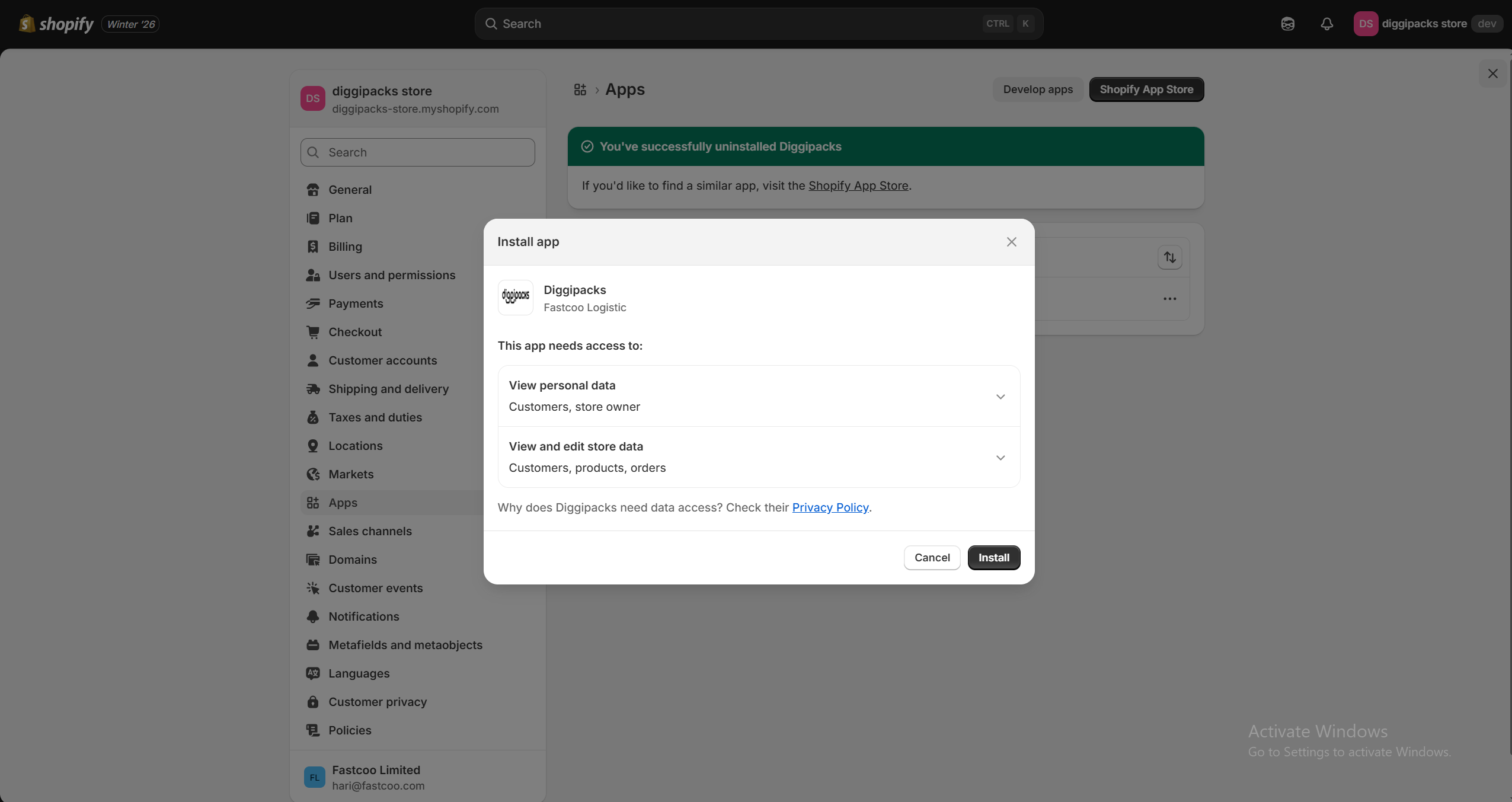
Follow these steps to install and activate the Diggipacks Sync extension in Shopify 6.8.3 :
1. Open the Shopify Link.
2. Go to the Installed button.
3. Open the add install button.
Settings
Settings
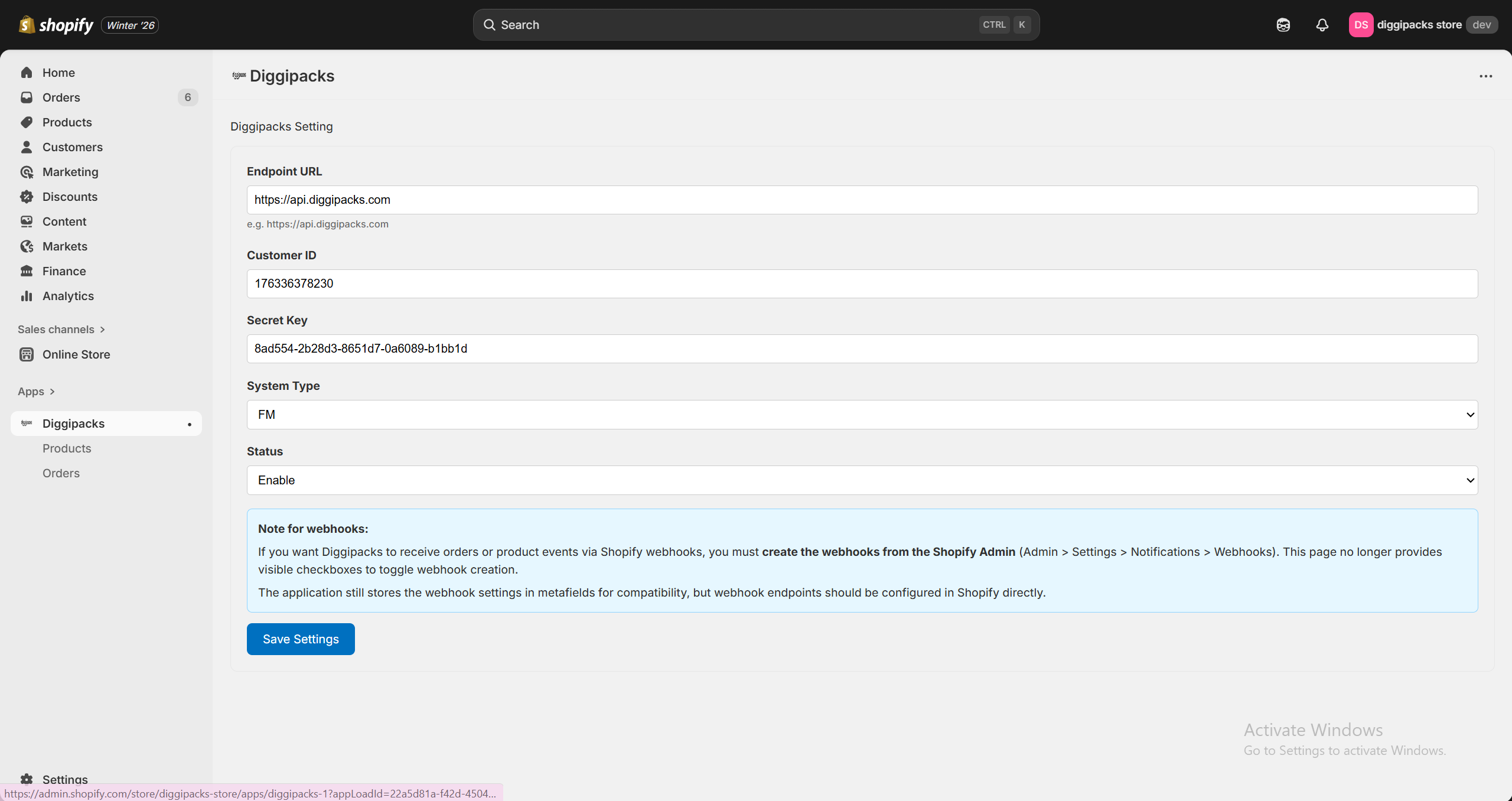
Go to the Settings section.
You will see several fields such as:
1.Endpoint URL :
2.Customer ID :
3.Secret Key :
4.System Type :
5.Status :
Enter the required details in each field. Once completed, the system will automatically connect and sync your Open URL with Diggipacks, helping you run processes more smoothly and efficiently.
Orders List
Orders List
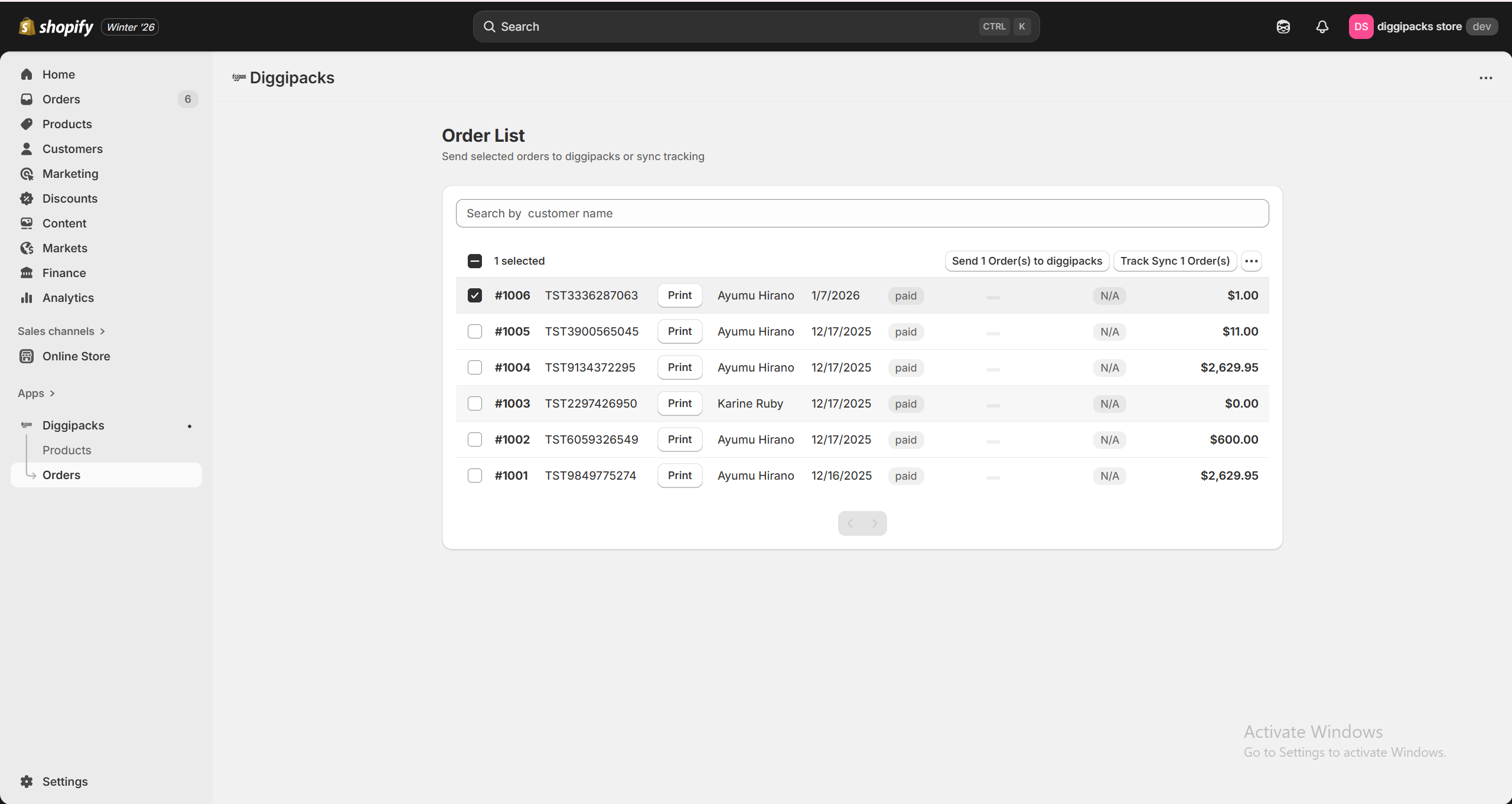
Order Management Guide
Creating an Order
1.Go to the Order List section.
2.To create an order, an AWB number must be generated.
3.Select the customer order(s) by ticking the checkbox next to them.
4.Click the Send Order button at the top of the page.
5.Once clicked, the AWB number will appear in the AWB column.
Tracking Order Status
To check the order status, click on the Track and Sync button available at the top of the page.
Product List
Product List
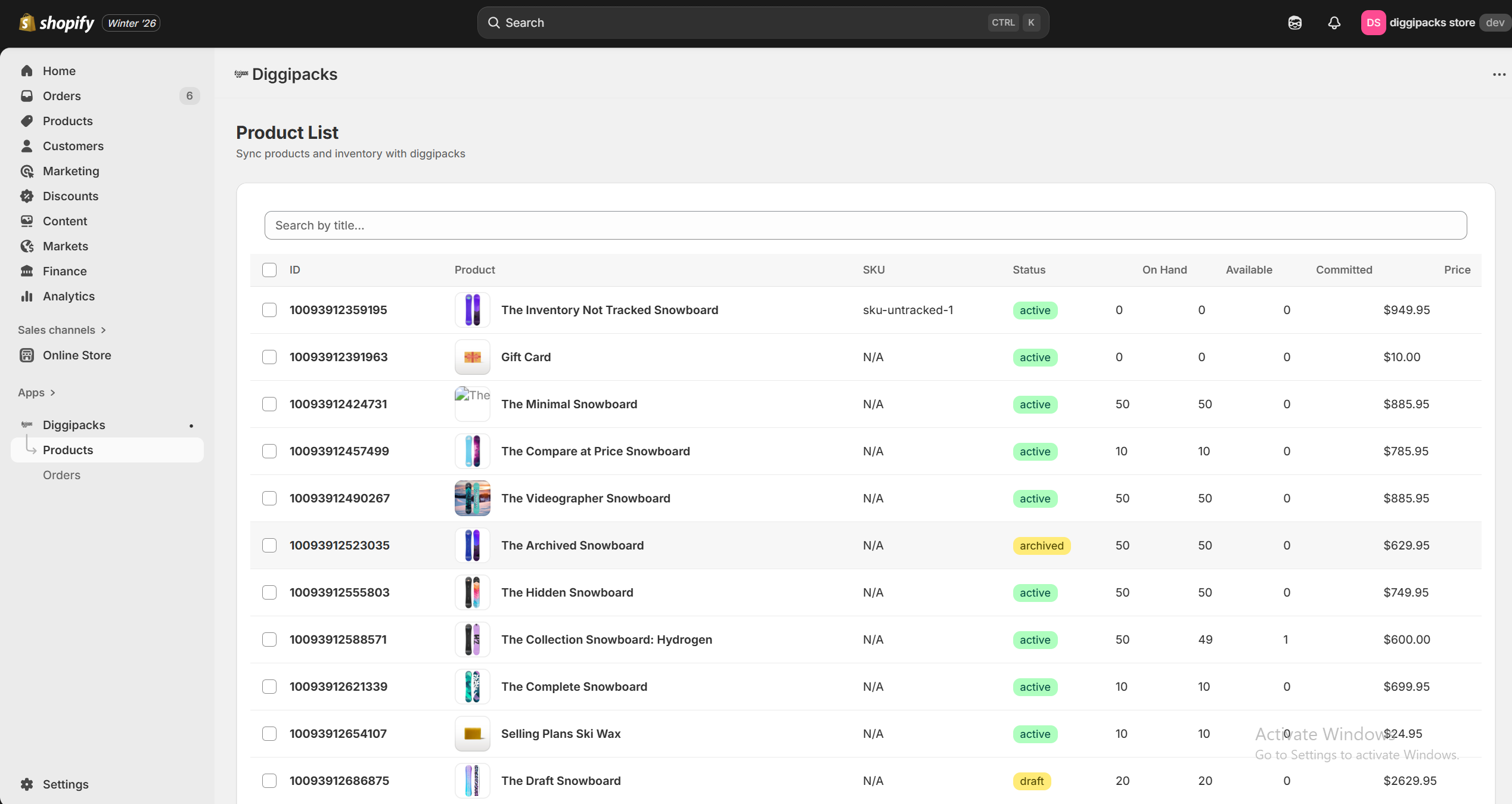
Managing Your Product List in Diggipacks
Adding and updating products in Diggipacks is simple. Just follow these steps:
Add Products
1.Open the Product List section.
2.Tick the checkbox next to the products you want to add.
3.Click the Send button at the top of the page. Your selected products will now be added to Diggipacks.
Update Stock
1.Right next to the Send button, you’ll see the Stock Update button.
2.Click it to refresh stock levels, and the updated quantities will show in the list.